CloudPass LogoCloud Pass
AWSGoogle CloudMicrosoftCiscoCompTIADatabricks
Certifications
AWSGoogle CloudMicrosoftCiscoCompTIADatabricks
Microsoft SC-300
Microsoft SC-300

Practice Test #3

Simulate the real exam experience with 50 questions and a 100-minute time limit. Practice with AI-verified answers and detailed explanations.

50Questions100Minutes700/1000Passing Score
Browse Practice Questions

AI-Powered

Triple AI-Verified Answers & Explanations

Every answer is cross-verified by 3 leading AI models to ensure maximum accuracy. Get detailed per-option explanations and in-depth question analysis.

GPT Pro
Claude Opus
Gemini Pro
Per-option explanations
In-depth question analysis
3-model consensus accuracy

Practice Questions

1
Question 1
(Select 2)

You have an Azure Active Directory (Azure AD) tenant named contoso.com. You plan to bulk invite Azure AD business-to-business (B2B) collaboration users. Which two parameters must you include when you create the bulk invite? Each correct answer presents part of the solution. NOTE: Each correct selection is worth one point.

Correct. The email address is required to identify the external recipient and to create/send the B2B invitation. In bulk invite CSV templates, this is the primary required field (often “Invited user email address”). Azure AD uses it to deliver the invitation message and to associate the guest user object with the external identity.

Correct. The redirection URL (invite redirect URL) is required in the bulk invite process to define where the user is sent after redeeming the invitation. This is a standard required column in the Azure portal bulk invite CSV template and aligns with the invitation API concept of an “inviteRedeemUrl/redirect URL” destination.

Incorrect. A username is not a required parameter for B2B bulk invitations. Guest users are primarily identified by their email address, and Azure AD can derive or generate user principal name details for the guest object. You may optionally provide display name, but “username” is not a required bulk invite parameter.

Incorrect. A shared key is not used in Azure AD B2B collaboration invitations. Shared keys are typically associated with network security scenarios (e.g., IPsec pre-shared keys) or certain app secrets, not with inviting guest users to an Entra tenant.

Incorrect. You do not set a password when inviting B2B collaboration users. External users authenticate using their own identity provider (their home Entra tenant, Microsoft account, or federated IdP). Password-based provisioning would apply to creating local member accounts, not B2B guest invitations.

Question Analysis

Core concept: This question tests Azure AD (Microsoft Entra ID) B2B collaboration bulk invitations. Bulk invite is commonly performed via the Azure portal (Bulk invite users) or via Microsoft Graph/PowerShell using a CSV. The goal is to create guest user objects and send invitation emails so external users can redeem and access shared apps/resources. Why the answer is correct: For a bulk invite to work, Azure AD must know (1) who to invite and (2) where to send them after they redeem the invitation. Therefore, the CSV (or request payload) must include the invited user’s email address (the identity used to deliver the invitation and create the guest user) and a redirection URL (often called invite redirect URL) that determines the post-redemption landing page. In the portal CSV template, these map to fields like “Invited user email address” and “Invite redirect URL”. Without the email address, there is no target recipient. Without a redirect URL, the invitation flow lacks a defined destination and the bulk invite creation is not valid per the template requirements. Key features and best practices: B2B invitations create a guest user (UserType=Guest) and can optionally include display name, custom message, and group/app assignment after redemption. Use a redirect URL that is allowed and appropriate (e.g., MyApps, an app URL, or a specific landing page). From a Well-Architected Framework perspective (Security and Operational Excellence), standardize the invitation process (CSV template, automation via Graph), and ensure governance controls like access reviews, entitlement management, and guest restrictions are in place. Common misconceptions: Many assume “username” or “password” is required because they think they are creating a local account. In B2B, the external user authenticates with their own identity provider (Microsoft account, another Entra tenant, federated IdP, etc.), so you do not set a password. “Shared key” is unrelated (more common in VPN/Wi-Fi concepts). Exam tips: For SC-300, remember: B2B guest onboarding is invitation-based. Required fields typically include the invited user’s email and an invite redirect URL. Passwords are not part of B2B invites. Also distinguish B2B collaboration (guests) from B2B direct connect and from creating member users in your tenant.

2
Question 2

You have a Microsoft 365 tenant. All users have mobile phones and laptops. The users frequently work from remote locations that do not have Wi-Fi access or mobile phone connectivity. While working from the remote locations, the users connect their laptop to a wired network that has internet access. You plan to implement multi-factor authentication (MFA). Which MFA authentication method can the users use from the remote location?

A verification code from the Microsoft Authenticator app is correct because the app can generate one-time passcodes offline using TOTP. After the app is registered, the code is produced locally on the device and does not require Wi-Fi, mobile data, or cellular service. In this scenario, the user signs in from the laptop using the wired internet connection and enters the code displayed on the phone. This directly satisfies the requirement to use MFA from a remote location where the phone has no connectivity.

Security questions are not an MFA authentication method used for Microsoft 365 sign-in in this scenario. They are generally associated with self-service password reset or account recovery workflows rather than as a standard second factor for authentication. Even if available in some identity-related processes, they do not represent the appropriate MFA method being asked about here. Therefore, they do not meet the requirement for Microsoft 365 MFA access from the remote location.

Voice is incorrect because voice-based MFA requires the user to receive a phone call on their mobile phone or another registered phone number. In the scenario, users are in locations without mobile phone connectivity, so the call cannot be delivered. Unlike Authenticator verification codes, voice authentication depends on real-time telecom network access. As a result, it would fail in the described remote environment.

SMS is incorrect because text-message-based MFA requires cellular connectivity to receive the verification code. The scenario explicitly states that the remote locations do not have mobile phone connectivity, so the SMS message would not arrive. Although the laptop has wired internet access, that does not help the phone receive a text message. Therefore, SMS cannot be relied on as the MFA method in this situation.

Question Analysis

Core concept: This question tests your understanding of which Microsoft Entra ID / Microsoft 365 MFA methods work when users do not have mobile network connectivity or Wi-Fi on their phones, but do have internet access on their laptops through a wired connection. The key is identifying an MFA method that does not depend on receiving a phone call, text message, or a live push notification to the mobile device. Why the answer is correct: A verification code from the Microsoft Authenticator app can be generated offline using time-based one-time password (TOTP) functionality. The app does not need an active internet connection or mobile signal to display these rotating codes once it has already been registered to the user's account. In the scenario, users can sign in on their laptops over the wired internet connection and then enter the code shown in the Authenticator app on their phones. This makes it the only listed option that remains usable when the phone has no Wi-Fi or cellular connectivity. Key features / configurations: - Microsoft Authenticator supports offline verification codes based on TOTP. - Offline code generation works after the app has been enrolled and configured for the user. - SMS-based MFA requires cellular service to receive text messages. - Voice-based MFA requires phone connectivity to receive a call. - Security questions are not a standard MFA method for Microsoft 365 sign-in in this context. - The laptop's internet connectivity is sufficient for the sign-in transaction, while the phone only needs to display the locally generated code. Common misconceptions: - Many candidates confuse Authenticator push notifications with Authenticator verification codes. Push notifications require connectivity, but verification codes do not. - Some assume any phone-based MFA method works as long as the laptop has internet access. That is incorrect because SMS and voice depend on the phone receiving a message or call. - Security questions are often mistaken for a valid MFA option in Microsoft 365 sign-in scenarios, but they are not used here as a standard second factor. - Candidates may overlook that the phone can still be used offline if the method is based on locally generated codes. Exam tips: - Distinguish between online MFA methods and offline-capable MFA methods. - Microsoft Authenticator verification codes can work without phone connectivity. - SMS and voice always require the phone to receive something over a network. - Push notification approval is different from entering a code from the app. - When a question mentions no Wi-Fi or mobile signal on the phone, think offline TOTP code generation.

3
Question 3

Your company has a Microsoft 365 tenant. The company has a call center that contains 300 users. In the call center, the users share desktop computers and might use a different computer every day. The call center computers are NOT configured for biometric identification. The users are prohibited from having a mobile phone in the call center. You need to require multi-factor authentication (MFA) for the call center users when they access Microsoft 365 services. What should you include in the solution?

A named network location is an IP-based Conditional Access condition (trusted location) used to include/exclude networks or bypass MFA on corporate ranges. It does not provide MFA by itself and cannot satisfy a requirement to “require MFA.” It’s useful to reduce prompts or restrict access to the call center network, but you still need an actual MFA method (e.g., FIDO2) to complete MFA challenges.

Microsoft Authenticator is a common MFA method (push notifications, OTP, passwordless), but it requires a mobile phone. The scenario explicitly prohibits mobile phones in the call center, making this option infeasible. Even if users had phones outside the call center, they would be unable to complete MFA while working, leading to lockouts and operational issues.

Windows Hello for Business is a strong authentication method tied to a specific device and typically uses biometrics or a device PIN backed by TPM keys. In a shared-desktop environment where users switch computers daily and the PCs are not configured for biometrics, WHfB is not practical. It also generally requires device enrollment and per-user provisioning on each device, which is operationally heavy for 300 rotating users.

FIDO2 tokens (security keys) are ideal for shared workstations and restricted environments. They provide phishing-resistant MFA without phones or biometrics, and users can authenticate on any compatible computer by inserting the key and using a PIN/touch. They integrate with Microsoft Entra ID authentication methods and can be enforced via Conditional Access for Microsoft 365 access, meeting the requirement reliably.

Question Analysis

Core concept: This question tests selecting an MFA method that works under strict environmental constraints and aligns with Microsoft Entra ID (Azure AD) authentication methods and Conditional Access. The scenario is a shared-device call center with no biometrics and no mobile phones, but MFA is required for Microsoft 365. Why the answer is correct: FIDO2 security keys (tokens) provide strong, phishing-resistant MFA without requiring a phone or a specific PC. Each user can carry a hardware key, plug it into any shared desktop (USB-A/USB-C/NFC depending on the key and device), and complete MFA using a PIN or touch. This fits the call center model where users rotate computers daily and cannot use mobile devices. It also avoids biometrics (which are not available) while still enabling a modern, high-assurance factor. Key features / configuration points: - Enable FIDO2 security key authentication method in Microsoft Entra ID. - Register keys per user (self-service registration or assisted enrollment). - Use Conditional Access to require MFA for the call center user group when accessing Microsoft 365 cloud apps. - Prefer phishing-resistant authentication (often a CA authentication strength policy) to reduce token theft and MFA fatigue attacks. - Operationally, maintain spare keys and a secure issuance/revocation process (identity governance best practice). Common misconceptions: A named network location is not an MFA method; it is a Conditional Access signal used to trust or restrict access by IP ranges. It can reduce MFA prompts (e.g., bypass MFA on trusted networks) but cannot satisfy “require MFA” by itself. Microsoft Authenticator requires a mobile device, which is prohibited. Windows Hello for Business typically relies on device-bound keys and commonly uses biometrics or a PIN on a specific enrolled device; it is not suitable for users roaming across shared desktops without biometric configuration. Exam tips: When you see “no phones” and “shared PCs,” think hardware-based methods like FIDO2. Also distinguish between “signals/conditions” (named locations) and “authentication methods” (Authenticator, WHfB, FIDO2). For Microsoft 365 access, the enforcement mechanism is usually Conditional Access, but the question asks what to include to meet MFA under the constraints—so choose the viable factor.

4
Question 4

Your company recently implemented Azure Active Directory (Azure AD) Privileged Identity Management (PIM). While you review the roles in PIM, you discover that all 15 users in the IT department at the company have permanent security administrator rights. You need to ensure that the IT department users only have access to the Security administrator role when required. What should you configure for the Security administrator role assignment?

Expiring eligible assignments limits how long a user remains eligible (e.g., eligible for 30 days), but it does not by itself address the core issue of permanent active permissions. Even with expiration, users could still activate whenever they are eligible. The key requirement is removing standing access by changing Active to Eligible; expiration is an optional governance enhancement, not the primary fix.

Expiring active assignments would remove permanent access after a set period, but until the expiration date the users still have continuous Security Administrator permissions. This does not meet “only when required” because it allows standing access during the active window. PIM’s intended control for JIT access is to make users Eligible and require activation for time-bound elevation.

Setting the assignment type to Active is the opposite of the requirement. Active assignments grant immediate, continuous role permissions without activation, which is effectively permanent admin access (standing privilege). This increases risk and violates least privilege principles. Active is typically reserved for break-glass accounts or tightly controlled service scenarios, not general IT staff.

Setting the assignment type to Eligible is the correct configuration to ensure users only gain Security Administrator permissions when they explicitly activate the role. Eligible assignments support JIT elevation with configurable safeguards such as MFA, approval, justification, ticketing, and limited activation duration. This directly enforces least privilege and reduces standing administrative access.

Question Analysis

Core concept: This question tests Azure AD Privileged Identity Management (PIM) role assignment types and how to enforce just-in-time (JIT) privileged access. PIM supports two primary assignment types for Azure AD roles: Active (permanent standing access) and Eligible (no standing access until activated). This aligns to Zero Trust and the Azure Well-Architected Framework security pillar (least privilege, reduce blast radius, and minimize standing privileges). Why the answer is correct: The problem states all 15 IT users have permanent Security Administrator rights. To ensure they only have access when required, you must remove standing access and make them activate the role only when needed. In PIM, that is accomplished by setting the role assignment type to Eligible. Eligible users do not have the role’s permissions until they activate the role (optionally requiring MFA, justification, ticket number, and/or approval) for a limited duration. This directly meets the requirement: access only when required. Key features and best practices: With Eligible assignments, you can configure role settings such as: - Activation duration (time-bound elevation) - Require MFA on activation - Require justification and/or ticketing integration - Require approval (e.g., from a security lead) - Notifications and auditing These controls reduce risk and provide traceability. In real-world operations, Security Administrator is highly sensitive (can manage security policies, alerts, and configurations), so JIT elevation is a standard governance control. Common misconceptions: Many confuse “expiring assignments” with “JIT access.” Expiration settings can limit how long an assignment exists, but an Active assignment still grants continuous permissions until it expires. The requirement is not “temporary assignment over weeks/months,” but “only when required,” which is achieved by Eligible + activation. Exam tips: For SC-300, remember: Active = standing privileges; Eligible = JIT via activation. If a question mentions “permanent admin rights” and wants “only when needed,” the correct action is to convert to Eligible and then tune activation requirements (MFA/approval/duration) in role settings.

5
Question 5

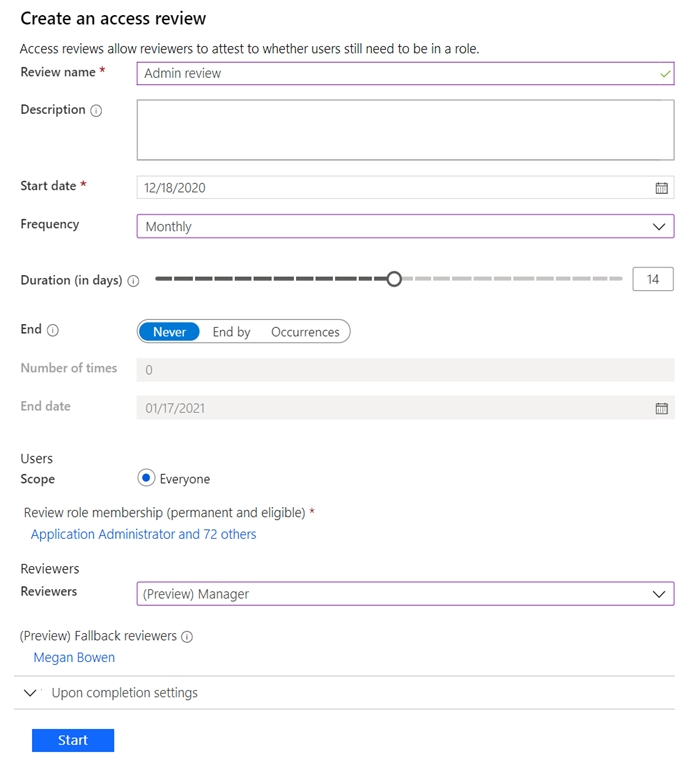
Note: This question is part of a series of questions that present the same scenario. Each question in the series contains a unique solution that might meet the stated goals. Some question sets might have more than one correct solution, while others might not have a correct solution. After you answer a question in this section, you will NOT be able to return to it. As a result, these questions will not appear in the review screen. You have a Microsoft 365 tenant. You have 100 IT administrators who are organized into 10 departments. You create the access review shown in the exhibit. (Click the Exhibit tab.)

You discover that all access review requests are received by Megan Bowen. You need to ensure that the manager of each department receives the access reviews of their respective department. Solution: You set Reviewers to Member (self). Does this meet the goal?

Part 1:

Select the correct answer(s) in the image below.

question-image

Fail. Setting Reviewers to Member (self) makes each IT administrator review their own access (self-attestation). That does not ensure that the manager of each department receives and performs the access review for their department’s users. The requirement is explicitly manager-based routing by department. The reason all requests currently go to Megan Bowen is that she is configured as the fallback reviewer. Fallback reviewers receive review tasks when Entra ID cannot determine a valid manager for the reviewed users (for example, the Manager attribute is not set for those users). To meet the goal, keep Reviewers as Manager and ensure each admin account has the correct manager populated in Entra ID (and optionally scope reviews by department groups). Self-review is a different governance control and does not satisfy the manager-per-department requirement.

Want to practice all questions on the go?

Download Cloud Pass — includes practice tests, progress tracking & more.

6
Question 6

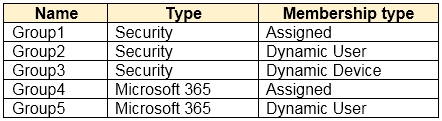
You have an Azure Active Directory (Azure AD) tenant that contains the groups shown in the following table.
diagram

For which groups can you create an access review?

Incorrect. Group1 (Security, Assigned) is eligible, but Group4 (Microsoft 365, Assigned) is also eligible for access reviews. The question includes both Security and Microsoft 365 groups; assigned membership is the key requirement. Choosing only Group1 ignores that Microsoft 365 groups with assigned membership can also be reviewed.

Correct. Access reviews support groups with assigned membership, including both Security groups and Microsoft 365 groups. Group1 and Group4 are assigned. Group2, Group3, and Group5 are dynamic membership groups (dynamic user/device), which are not supported for access reviews because membership is rule-driven and cannot be effectively approved/denied per member.

Incorrect. Group1 and Group2 includes a dynamic user security group (Group2). Dynamic membership groups are not eligible for access reviews because the membership is automatically computed and would override review decisions. The correct set must exclude dynamic groups and include eligible assigned Microsoft 365 groups like Group4.

Incorrect. This option includes Group2 and Group5, both dynamic user groups, which are not eligible for access reviews. While it correctly includes Group1 and Group4 (assigned membership), adding dynamic groups makes the option wrong. Dynamic device groups (Group3) are also not eligible for the same reason.

Incorrect. This option assumes all groups can be reviewed, but access reviews do not apply to dynamic membership groups (dynamic user or dynamic device). Group2, Group3, and Group5 are dynamic and therefore excluded. Only assigned membership groups (Group1 and Group4) qualify.

Question Analysis

Core concept: This question tests Azure AD (Microsoft Entra ID) Identity Governance, specifically Access Reviews. Access reviews help ensure that group memberships and access assignments remain appropriate over time (least privilege), aligning with Azure Well-Architected Framework security principles (minimize blast radius, continuous verification). Why the answer is correct: Access reviews can be created for: 1) Security groups with assigned membership, and 2) Microsoft 365 groups with assigned membership. They are not supported for dynamic membership groups (dynamic user or dynamic device) because membership is calculated automatically based on rules; reviewers cannot meaningfully approve/deny individual members when the system will re-add/remove them according to the rule. Therefore, from the table: - Group1 (Security, Assigned) supports access reviews. - Group4 (Microsoft 365, Assigned) supports access reviews. - Group2 (Security, Dynamic User) does not. - Group3 (Security, Dynamic Device) does not. - Group5 (Microsoft 365, Dynamic User) does not. Thus, Group1 and Group4 only. Key features / best practices: Access reviews can be configured with reviewers (group owners, selected users, or self-review), recurrence, auto-apply results, and actions for non-responders. They typically require Microsoft Entra ID Governance/ID P2 capabilities depending on scenario. Use access reviews for privileged groups, application assignments, and guest access to reduce standing access. For dynamic groups, govern the rule itself (change control, approvals, monitoring) rather than reviewing members. Common misconceptions: A frequent trap is assuming “any group” can be reviewed. Dynamic groups look like normal groups in the directory, but their membership is not manually managed, so access reviews are not applicable. Another misconception is thinking Microsoft 365 groups behave differently; the key factor is membership type (Assigned vs Dynamic), not whether the group is Security vs Microsoft 365. Exam tips: When you see Access Reviews, immediately check the object type and whether membership is assigned or dynamic. If it’s dynamic, eliminate it. Also remember access reviews apply broadly (groups, apps, roles), but each has eligibility constraints—watch for “dynamic” and “device” wording as common distractors.

7
Question 7

HOTSPOT - You need to meet the technical requirements for the probability that user identities were compromised. What should the users do first, and what should you configure? To answer, select the appropriate options in the answer area. NOTE: Each correct selection is worth one point. Hot Area:

Part 1:

The users must first: ______

Correct answer: C (Register for self-service password reset (SSPR)). If the goal is to address the probability that identities were compromised (user risk), the typical automated remediation is to force a password change. In Microsoft Entra ID, a user risk policy can require “password change” when user risk is detected. For users to complete that password change without helpdesk/admin intervention, they must be registered for SSPR (including authentication methods required by SSPR). This is the practical prerequisite that enables the policy outcome. Why not B: MFA registration helps mitigate risky sign-ins and strengthens authentication, but it does not by itself enable the “require password change” remediation flow for compromised identities. Why not A: App consent is unrelated to Identity Protection risk remediation and does not address compromised identity probability.

Part 2:

You must configure: ______

Correct answer: B (A user risk policy). A user risk policy in Identity Protection targets the likelihood that a user account is compromised (user risk). It can automatically remediate by requiring a secure password change (and/or blocking access) when the user risk level meets a configured threshold (low/medium/high). This directly matches the requirement about the probability that user identities were compromised. Why not A: A sign-in risk policy evaluates individual sign-in attempts (session/authentication events). It’s used when you want to respond to risky sign-ins (for example, require MFA or block sign-in), not when the account itself is suspected compromised. Why not C: Azure AD Password Protection focuses on banning weak passwords and enforcing password complexity (including custom banned password lists). It improves password hygiene but does not implement risk-based detection/remediation for compromised identities.

8
Question 8

You have an Azure Active Directory (Azure AD) tenant. You create an enterprise application collection named HR Apps that has the following settings: ✑ Applications: App1, App2, App3 ✑ Owners: Admin1 ✑ Users and groups: HRUsers All three apps have the following Properties settings: ✑ Enabled for users to sign in: Yes ✑ User assignment required: Yes

Visible to users: Yes -

Users report that when they go to the My Apps portal, they only see App1 and App2. You need to ensure that the users can also see App3. What should you do from App3?

Part 1:

The Azure AD licenses must be assigned to the Users group.

No. Assigning Azure AD (Entra ID) licenses to a Users group is not required to make an enterprise application appear in the My Apps portal. My Apps visibility is controlled by the enterprise application’s assignment (Users and groups) and the application property “Visible to users,” especially when “User assignment required” is set to Yes. Group-based licensing is used to grant product capabilities (for example, Entra ID P1/P2 features such as Conditional Access, Identity Protection, PIM, etc.). While licensing can be necessary to use certain security features, it does not by itself publish an app tile in My Apps. If users can already see App1 and App2, licensing is clearly not the differentiator for basic My Apps access. The correct fix is to ensure HRUsers is assigned to App3 (or that App3 has an equivalent assignment), not to change licensing.

Part 2:

The device settings of contoso.com must be configured to allow only the Members group to join devices.

No. Configuring device settings to allow only a specific group (Members) to join devices affects Azure AD device registration/join (who can Azure AD join devices), not whether an enterprise application appears in the My Apps portal. My Apps is an application access experience. The issue described is that users do not see App3, which is almost always due to missing assignment to App3 (given “User assignment required: Yes”) or App3 not being visible to users. Device join restrictions are tenant-wide device governance controls and would be an incorrect-scope change for an app tile visibility problem. From an exam perspective, avoid “broad tenant setting” changes when the symptom is isolated to one enterprise application. The least-privilege, correct-scope remediation is to adjust App3’s enterprise application assignments/visibility.

Part 3:

The Users group must be assigned the Cloud device administrator role.

No. Assigning the Cloud device administrator role to the Users group is unrelated to My Apps portal visibility for App3. The Cloud device administrator role provides permissions to manage device objects in Entra ID (for example, enabling/disabling devices, managing BitLocker keys in some contexts depending on integration), not to manage enterprise application assignments or user portal tiles. To make App3 appear when “User assignment required” is enabled, the users (or a group they are in, such as HRUsers) must be assigned to App3 under Enterprise applications > App3 > Users and groups. Alternatively, if the app is intended for all users, you could disable “User assignment required,” but that changes access control posture and is typically not recommended unless appropriate. Therefore, adding a device admin role would not address the root cause and would violate least privilege by granting unnecessary administrative rights.

9
Question 9

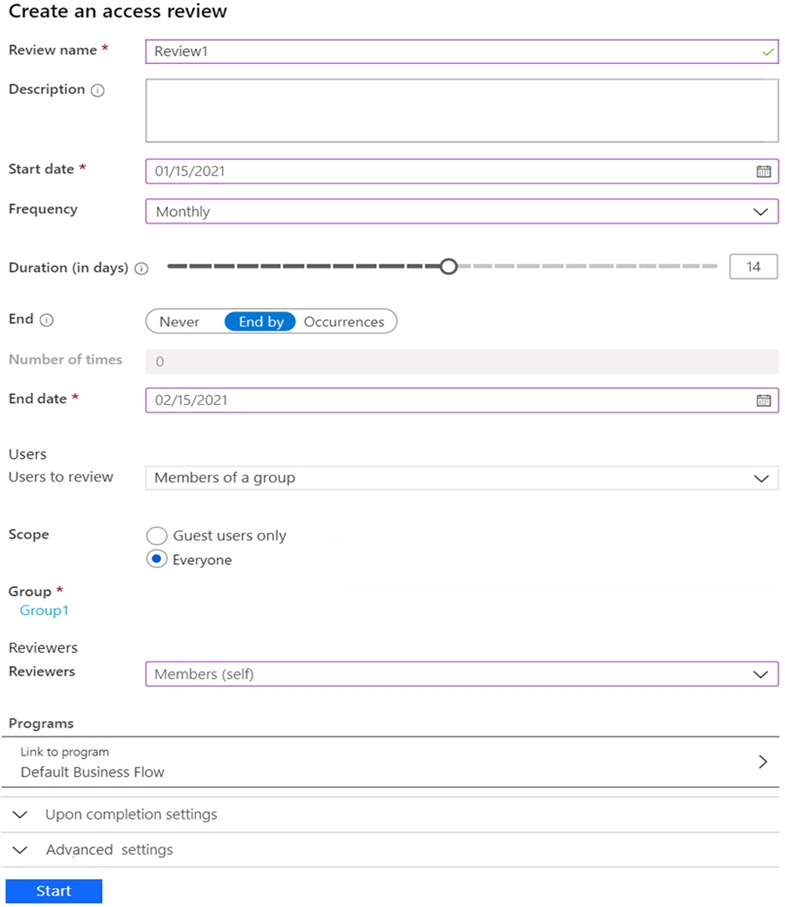
HOTSPOT - You have an Azure Active Directory (Azure AD) tenant that contains the following group: ✑ Name: Group1 ✑ Members: User1, User2 ✑ Owner: User3 On January 15, 2021, you create an access review as shown in the exhibit. (Click the Exhibit tab.)

Users answer the Review1 question as shown in the following table.

For each of the following statements, select Yes if the statement is true. Otherwise, select No. NOTE: Each correct selection is worth one point. Hot Area:

Part 1:

Select the correct answer(s) in the image below.

question-image

Select A (Pass) because the correct approach is determinable from the access review settings shown. The exhibit provides the critical parameters: start date (01/15/2021), frequency (Monthly), duration (14 days), end date (02/15/2021), scope (Group1 members), and reviewers (Members/self). From these, you can infer who is eligible to respond (only User1 and User2 because they are members) and the time windows when responses are allowed (during the active review period). Option B (Fail) would only apply if key information were missing (for example, if the reviewer type or duration were not shown). Here, the configuration is sufficient to answer all sub-questions using standard Access Reviews behavior tested in SC-300.

Part 2:

User1: Do you still need access to Group1?

User1 is a member of Group1 and the access review is configured with Reviewers = “Members (self)”. That means User1 is explicitly a reviewer for their own access and can respond to the prompt “Do you still need access to Group1?”. The table in the question states that “Users answer the Review1 question as shown…”. For User1, the recorded response is “Yes”. Therefore, the correct selection for User1’s answer is Yes. Why not No: Nothing in the scenario indicates User1 selected No, nor is there any automatic decisioning described (such as “auto-apply results” or “if no response remove access”). This sub-question is simply asking you to reflect the user’s provided response from the table.

Part 3:

User2: Do you still need access to Group1?

User2 is also a member of Group1 and, with “Members (self)” configured as reviewers, User2 can respond for themselves. The question states that users answered as shown in a table; User2’s recorded response is “No”. Therefore, for “User2: Do you still need access to Group1?”, the correct selection is No. Why not Yes: The access review does not infer “Yes” by default; the user’s explicit response is what is being tested here. Also, nothing in the provided settings indicates an auto-approval rule. In access reviews, each reviewer’s decision is captured per user per review instance, and the exam commonly checks that you can map the scenario’s stated responses to the correct options.

Part 4:

On February 5, 2021, User1 can answer the Review1 question again.

No. The first review instance starts on 01/15/2021 and has a duration of 14 days, so it is active approximately through 01/29/2021. February 5, 2021 is outside that active window. Could there be a second instance? With a monthly frequency, the next instance would start on 02/15/2021 (one month after 01/15). February 5 is still before 02/15, so there is no active review instance on 02/05. Additionally, access review responses are tied to an active instance; users can only answer while the instance is open. Since 02/05 is between instances (after the first ended and before the next would begin), User1 cannot answer the Review1 question again on that date.

Part 5:

On January 25, 2021, User2 can answer the Review1 question again.

Yes. The access review starts on January 15, 2021 and remains open for 14 days, so January 25 falls within the active review window. Because the reviewers are configured as "Members (self)", User2 is allowed to review their own access during that open period. While the review is active, the reviewer can revisit and change their response, so User2 can answer the Review1 question again on January 25. No would be incorrect because the review has not yet closed, and User2 is an eligible reviewer.

Part 6:

On January 22, 2021, User3 can answer the Review1 question.

No. User3 is the owner of Group1, but not a member (members are only User1 and User2). The access review is configured with Reviewers = “Members (self)”, which means only the users being reviewed (the group members) are reviewers. Group ownership does not grant the ability to participate in the access review unless the reviewer type includes owners (for example, “Group owners”) or User3 is also in the reviewed population (a member of Group1). Since neither is true, User3 is not a reviewer and cannot answer the Review1 question on 01/22/2021 (or any date) under this configuration. This is a common exam trap: confusing group owners’ management rights with access review reviewer assignment. Access reviews strictly follow the configured reviewer selection.

10
Question 10

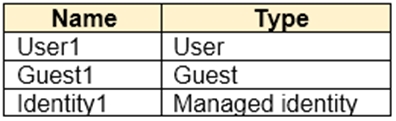
You have an Azure Active Directory (Azure AD) tenant that contains the objects shown in the following table.
diagram

Which objects can you add as eligible in Azure AD Privileged Identity Management (PIM) for an Azure AD role?

Incorrect because it includes Identity1 (managed identity). Managed identities are service principals (workload identities) and are not supported as eligible assignees for Azure AD directory roles in PIM. User1 and Guest1 can be eligible, but adding Identity1 makes the option wrong.

Correct. User1 (member user) can be assigned Azure AD roles as eligible in PIM. Guest1 can also be assigned Azure AD roles (depending on tenant configuration and role restrictions) and can be made eligible. Identity1 is a managed identity/service principal and is not eligible for Azure AD role PIM assignments.

Incorrect because it excludes Guest1. Guest users can be assigned Azure AD roles and can be managed through PIM (for example, for partner/admin scenarios) when permitted by tenant settings. Therefore, it’s not limited to only member users.

Incorrect because it includes Identity1. Even though managed identities can receive permissions in other ways (app permissions, Azure RBAC in some contexts), they are not supported as eligible principals for Azure AD directory roles in PIM. Guest1 is also incorrectly excluded.

Question Analysis

Core concept: This question tests Azure AD Privileged Identity Management (PIM) for Azure AD roles (directory roles) and which identity types can be made “eligible” (just-in-time) for those roles. PIM is part of Microsoft Entra ID Governance and is used to reduce standing privilege by requiring activation, approval, MFA, and time-bound elevation. Why the answer is correct: For Azure AD roles, PIM supports assigning eligibility to security principals that can hold directory role assignments. Standard member users (User1) can be made eligible. Guest users (Guest1) can also be assigned Azure AD roles (subject to tenant settings and role restrictions), and therefore can be made eligible in PIM as well. In contrast, a managed identity (Identity1) is a workload identity represented as a service principal. Service principals/managed identities are not supported as eligible assignees for Azure AD directory roles in PIM; PIM for Azure AD roles is designed for human administrators (users, including guests) rather than workload identities. Key features / best practices: PIM eligible assignments enable time-bound activation, MFA/justification requirements, approval workflows, and access reviews—aligning with the Azure Well-Architected Framework security pillar (least privilege, JIT access, strong authentication). For workload identities, use app permissions, Microsoft Graph application roles, Azure RBAC (where supported), or workload identity governance patterns rather than trying to use Azure AD role PIM eligibility. Common misconceptions: A frequent trap is assuming “any identity in Entra ID” (including managed identities/service principals) can be made eligible for directory roles. While service principals can be granted certain permissions and can be used with Azure RBAC in some scenarios, Azure AD directory roles via PIM eligibility are not intended for non-human principals. Exam tips: Remember the boundary: PIM for Azure AD roles (directory roles) is primarily for users (members and guests). Managed identities are service principals and are handled through workload identity controls (app permissions, certificates/secrets, Conditional Access for workload identities where applicable), not PIM eligible directory role assignments. If you see “managed identity” in a PIM-for-Azure-AD-roles question, it’s usually the item that cannot be made eligible.

Other Practice Tests

Practice Test #1

50 Questions·100 min·Pass 700/1000

Practice Test #2

50 Questions·100 min·Pass 700/1000
← View All Microsoft SC-300 Questions

Start Practicing Now

Download Cloud Pass and start practicing all Microsoft SC-300 exam questions.

Get it on Google PlayDownload on the App Store
Cloud PassCloud Pass

IT Certification Practice App

Get it on Google PlayDownload on the App Store

Certifications

AWSGCPMicrosoftCiscoCompTIADatabricks

Legal

FAQPrivacy PolicyTerms of Service

Company

ContactDelete Account

© Copyright 2026 Cloud Pass, All rights reserved.

Want to practice all questions on the go?

Get the app

Download Cloud Pass — includes practice tests, progress tracking & more.